The Top Five Questions That Authors Unfamiliar with EBooks Ask

Contents
The first time a publisher receives his or her eBooks for review, it's exceedingly common that if they've never used an eBook reader before, we'll get variants on either the same questions, or worse, we'll get proof forms full of "conversion mistakes" that aren't conversion mistakes, but are normal functions or methods of display for eBooks. Let's try to ensure that you don't waste your valuable time listing "errors" that aren't, right? Nobody wants to put in hours of time, only to be told that those things aren't mistakes or fixable.
1. You've put extra spaces between the words! (Typically Kindle)
We actually don't add spaces between words. What you are seeing is, 99.99% of the time, what are called "rivers" or "rivers of white," in typography. In the olden days of computer typography, before hyphenation programs and algorithms, the only way to justify the text on a page was to use small bits of vertical white space between words, to ensure that the last word on a line ended in the same spot, at the right-hand margin, like in a newspaper. We don't make those decisions or calls; that's done by the devices, on the fly. What you'll see will look a bit like this (the yellow highlighting shows you the "rivers"):
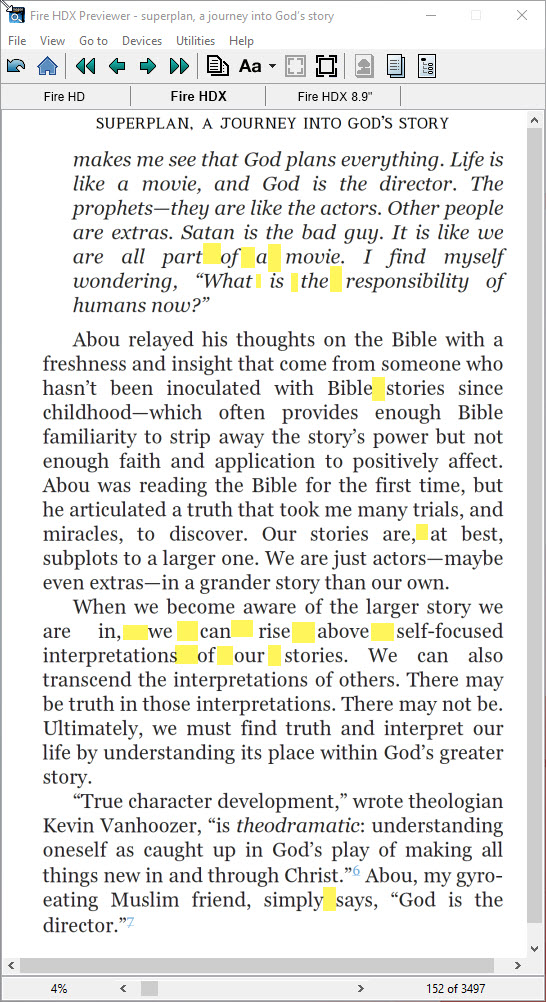
The yellow-highlighted spaces show you where the Kindle's justification algorithm has put additional space in, to ensure that the text aligns evenly on the right-hand margin.
The more multi-syllabic words that you have, in your book, the greater the chances that you'll see more, not fewer, rivers. The devices are forced to use rivers when longer words will not fit in the remaining space on any given line. The greater the number or incidence of shorter words, the fewer rivers you'll see in an eBook. As of late 2017 and 2018, Amazon has implemented "Enhanced Typesetting" ("ET"), which provides for hyphenation in Kindle, in the more-advanced devices...so at some point, rivers of white will become a thing of the past, in the Kindleverse. You can read more about rivers, here in our articles about "Why Are There Gaps Between the Words?"
2. Why Haven't you Fixed These Widows or Orphans?
Because, there are actually no widows or orphans in eBooks. Due to the changeability of eBooks—screen size, font, font size, orientation of the screen being read upon, pixel-density and so forth—there's no way to tell a device to "fix" widows and orphans on the fly. Please see this article "Why Can't You Move That Orphan to the Bottom of the Preceding Page?" As they don't exist, we don't, and can't, fix them. We do, however, embed coding in the eBooks that tells devices to try to move two lines, for example, to the next screen—but the device has to have the programming to obey those commands. Most don't, to this day (January, 2019, is the writing of this article).
3. Why are my Captions Breaking Away from my Images?
Because there's no way to prevent it. Please see "My Picture Captions Break Away from My Images."
4. You Didn't Make My Running Heads Properly!
We see a lot of comments like this, from non-fiction authors that want their running headers, in print, to display the current chapter. That's terrific for print, but eBooks don't have bookmaker-defined or created running headers. The devices display the running headers, and that information is derived from the title of the book, only. Chapter heads cannot be displayed as running headers, or any type of changeable running header, in eBooks.
5. My lists Aren't Justified/Aren't Indented Enough/Aren't Something...
Lists, in HTML, have specific coding that overrides everything else. While there are some minor adjustments you can make to HTML lists that display on websites, in eBooks, the coding is basically unchangeable. We can't replace bullets (either full or empty) with other icons. We can't make the indent a different depth, and we can't make the text a different indent from the bullet. The text in the lists is not justified. Sorry!
6. There's White Space and Big Gaps Before my Images/my Images are Pushed to the Next Page!
Again, while HTML websites can calculate things on the fly, and often adjust things hither and thither, eBooks pretty much can't. Let's say, for example, that we have an image embedded in your eBook, and it's supposed to be 400 pixels high. When Jane sizes her fonts, the way that particular page flows, there are only 350 pixels of space remaining on the "page" (screen) where the sentence appears, the last sentence before the image. The eReading device won't resize the image down to 350 pixels; it will simply move it to the next page, where there's enough space. That's all! If you change the font size, you'll see that BAM!, the image moves again, probably back to the preceding page, because now, there's enough space for it.
7. My Numbers are Misaligned! You used the Wrong Font!
We hear this surprisingly often from folks who've never read on a Kindle, or seen a font with numbers that routinely drop below the baseline of the text. Kindle, particularly, has a number of fonts that have Arabic numerals that drop below the baseline. The font is designed that way. They're not mistakes. Please see this article: "About Numerals and Baselines in Kindle."
8. My Cover's Not in the MOBI file!
Assuming you've given it to us, yes, I promise, it really is. Please see this article "Why Isn't My Cover in my Kindle File?" (Note—some Kindle for Mac apps routinely make it very difficult for users to see their covers.)
9. My Cover isn't in Color!
You're looking at it in the eInk Emulation—in which, covers are not in color. Switch over to the Fire or Smartphone emulation and you'll see your cover in full color. :-)
10. I put my MOBI Kindle file on my iPad, and the Fonts Disappeared/it Looks Terrible!
Well, there's an excellent chance that you ignored our instructions—the ones we send you with your eBooks—and took the MOBI file we sent you, and sideloaded it to your iPad, either via wire/USB or by emailing it to yourself, etc. That will not show you how the book will appear on your iPad, or how the for-sale book will appear. As we explain, in the instructions, you have to create a special file (or have us make it for you), and then sideload it in a specific way to your iPad/iPhone. You can read the instructions on how to do that, here: How to Put your Kindle eBook onto your iOS device for Review.