Why Isn’t My Cover in My Kindle File?

Contents
In all likelihood, it is in your MOBI file.
If you’re using Kindle Previewer 3.xx (for Kindle or Mac), please just click the cover item in the TOC. It looks like this:
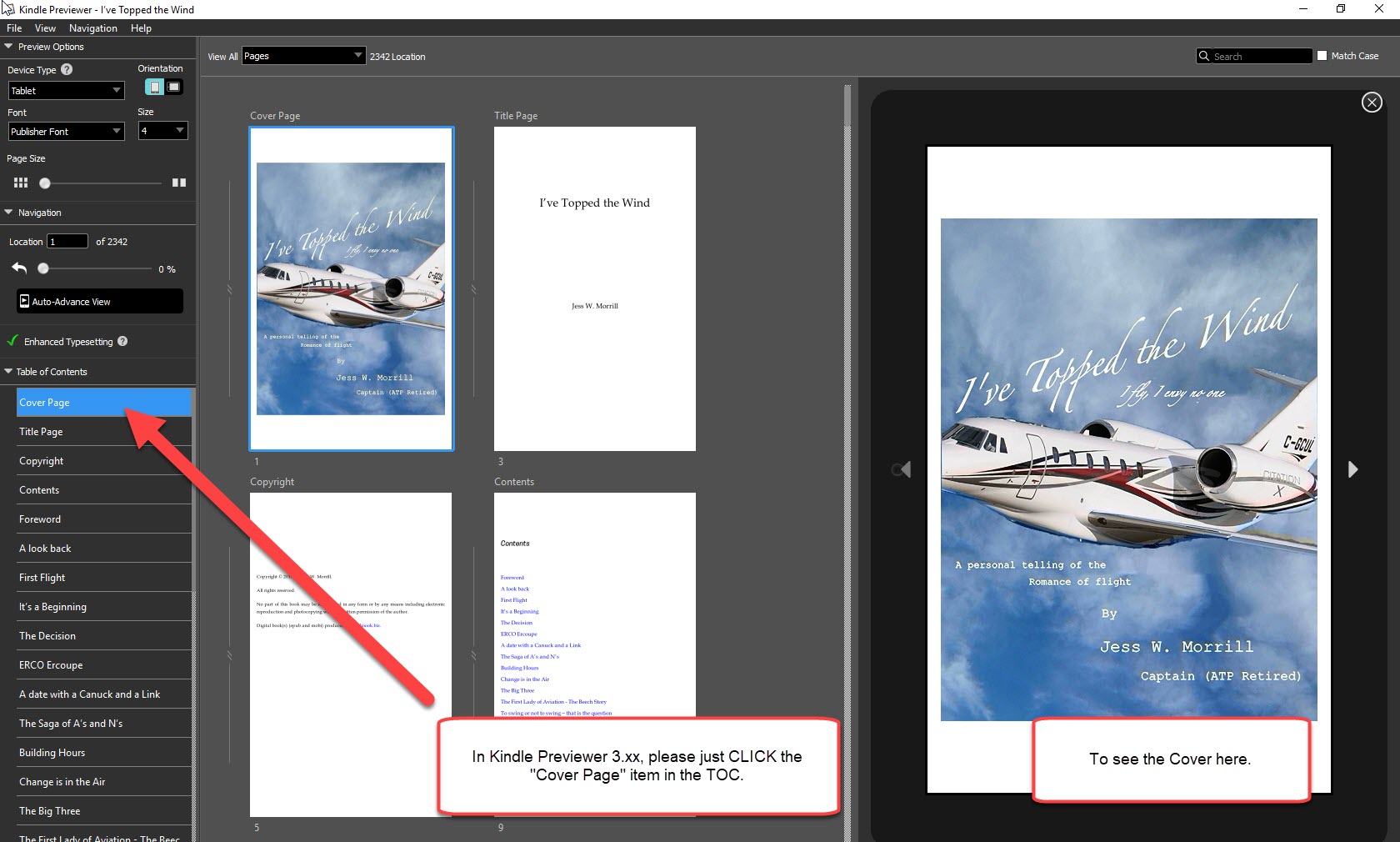
In Kindle Previewer 3.xx (for PC or Mac), just click the "Cover Page" entry on the Table of Contents.
You can also use the KP3 "go to" or Navigation menu:
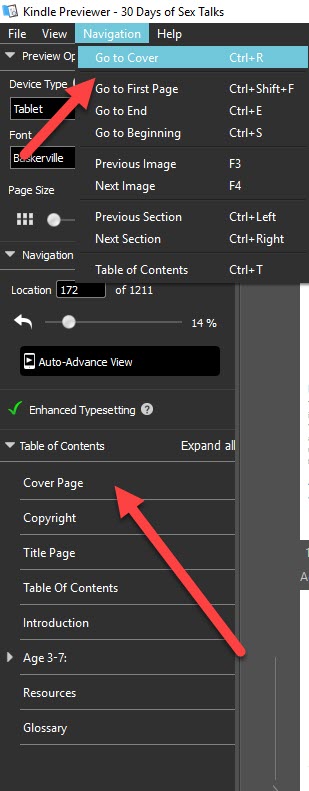
This shows the "Go To" or "Navigation" menu at the top of Kindle Previewer 3.
If you’re using Kindle Previewer 2.xx, then you should be able to see your cover.
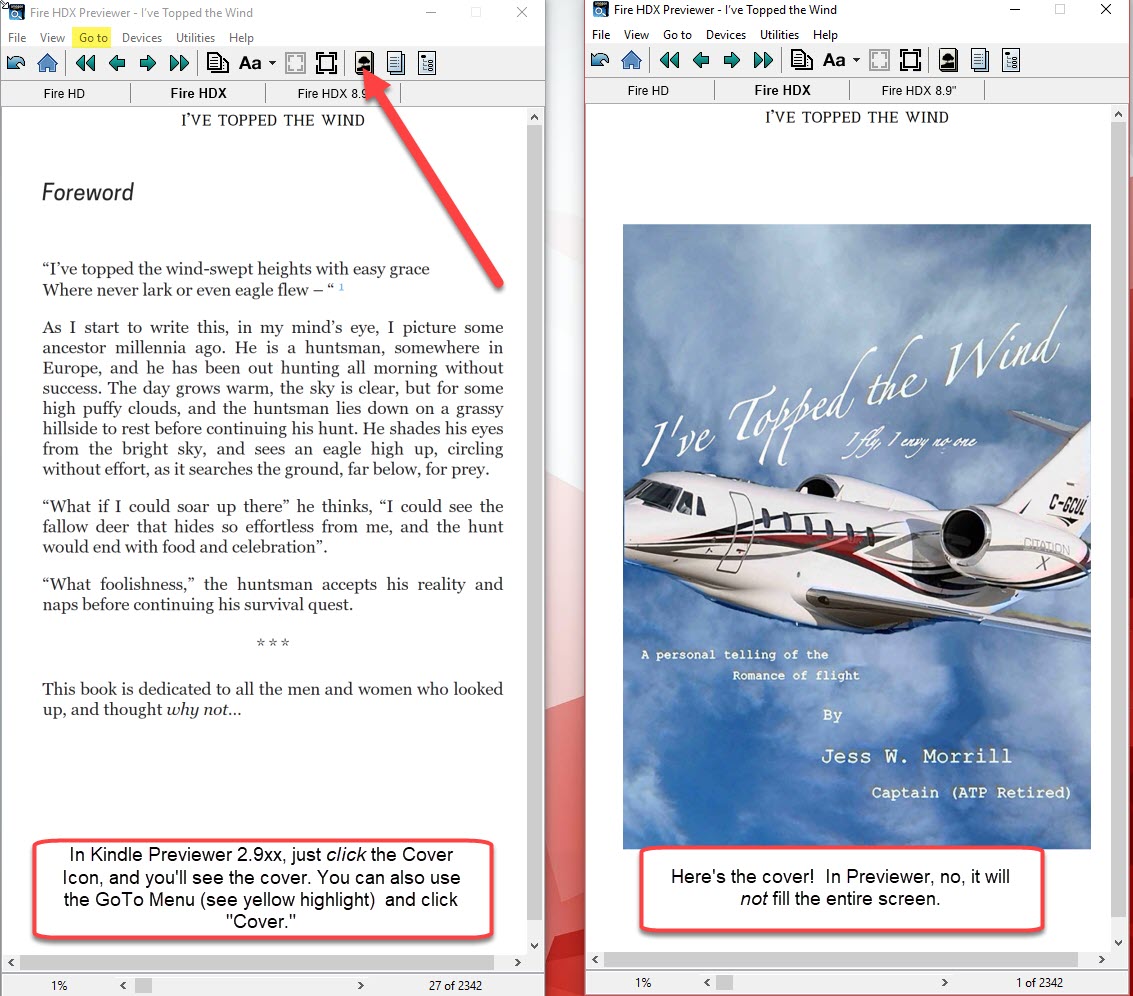
In Kindle Previewer 2.9xx, (PC Only), just click the "Cover" icon (see image), or use the GoTo Menu to "GoTo-->Cover," see the yellow highlight.
Of course, the third option is simply that you haven’t given us your cover image yet! If you haven’t, please provide that at your earliest convenience, and we’ll add it to your eBooks. Please see the latest Cover size Dimensions, here.
My Cover is in Black-and-White!
Nope, it's not, not unless you gave it to us in B&W; you simply have the emulator switched to an eInk, not a tablet or phone. Switch Kindle Previewer to tablet mode, and you'll see your cover in full living color.