How Do I Put My MOBI file onto My iPad/iPhone for Review?

Contents
An AZK file is a special type of book preview file. It exists for one purpose, and one only—to allow you, the publisher, to see how your Kindle eBook will appear, on an iOS device, when the book is put on sale. Other than this very limited existence, it has no other purpose. It can't be uploaded at the KDP, can't be loaded on a Kindle, etc.
How do I get an AZK?
You can make it yourself! Simply open your MOBI file in Kindle Previewer 3, and once it's opened, go to the menu. Choose File-->Export. In the resulting File Browser window, where you see "Save As Type," choose "Books for sideloading to iOS devices." and then hit "export."
The resulting AZK file will be in the same directory (file folder) as your original MOBI File.
Alternatively, you can ask Booknook.biz to make an AZK file for you. Then you can follow the instructions, below, to sideload it to your iOS device. Alternatively, open your MOBI file in Kindle previewer, click FILE, then click EXPORT, and then choose "AZK" in the type option. Save the resulting file, and you'll have the same AZK that we'd make for you.
1.You need to SIDELOAD the book, using your iPad, hooked to your computer with the USB cable, via iTunes.
2.The AZK can't be emailed or loaded via any other file-loading trick or mechanism. It can ONLY be sent via the iTunes—>USB—>Kindle App method.
3.Please see the attached images.
4.You have to hook your iPad up to your computer, with iTunes launched on the computer. (ITunes_initial Screen).
5.You then need to SELECT your iPad (the first image, below or next page)
6.Then, you'll select APPS. (The 2nd image, below—or next page). Once you've done that, you will scroll down the page to KINDLE, on the left, under FILE SHARING. (same image)
7.Then DRAG AND DROP the AZK file into the book list for Kindle. Right-hand-side of the File Sharing—>Kindle window (the 3rd image, below—or next page).
Only then will you see what the book will really look like on an iPad, AFTER the book has been through the Publishing Workflow at Kindle.
Unfortunately, their KDP Previewer is not yet updated to display the AZK file format. If you try to just sideload the MOBI, you'll be unhappy with what you see, and more importantly, it won't be an accurate representation.
These are brand-new screenshots, as of July 2018, so if you're reading this recently, they should be good to go.
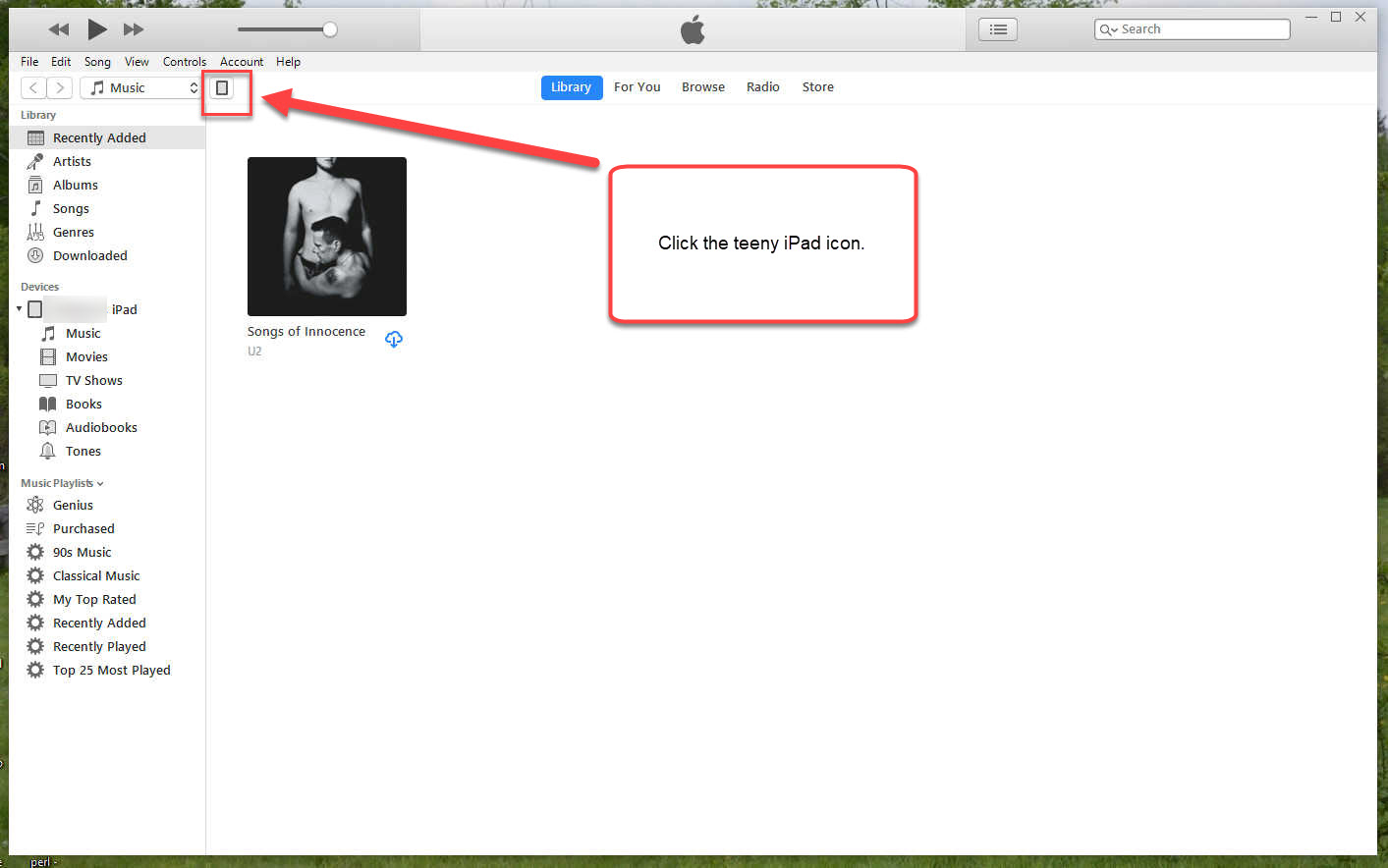
This is what you'll see, when you have hooked up your iPad to your computer and iTunes, using an USB cable. Make sure that you CLICK the teeny-weeny iPad icon you see shown here, in order to proceed to the next screen.
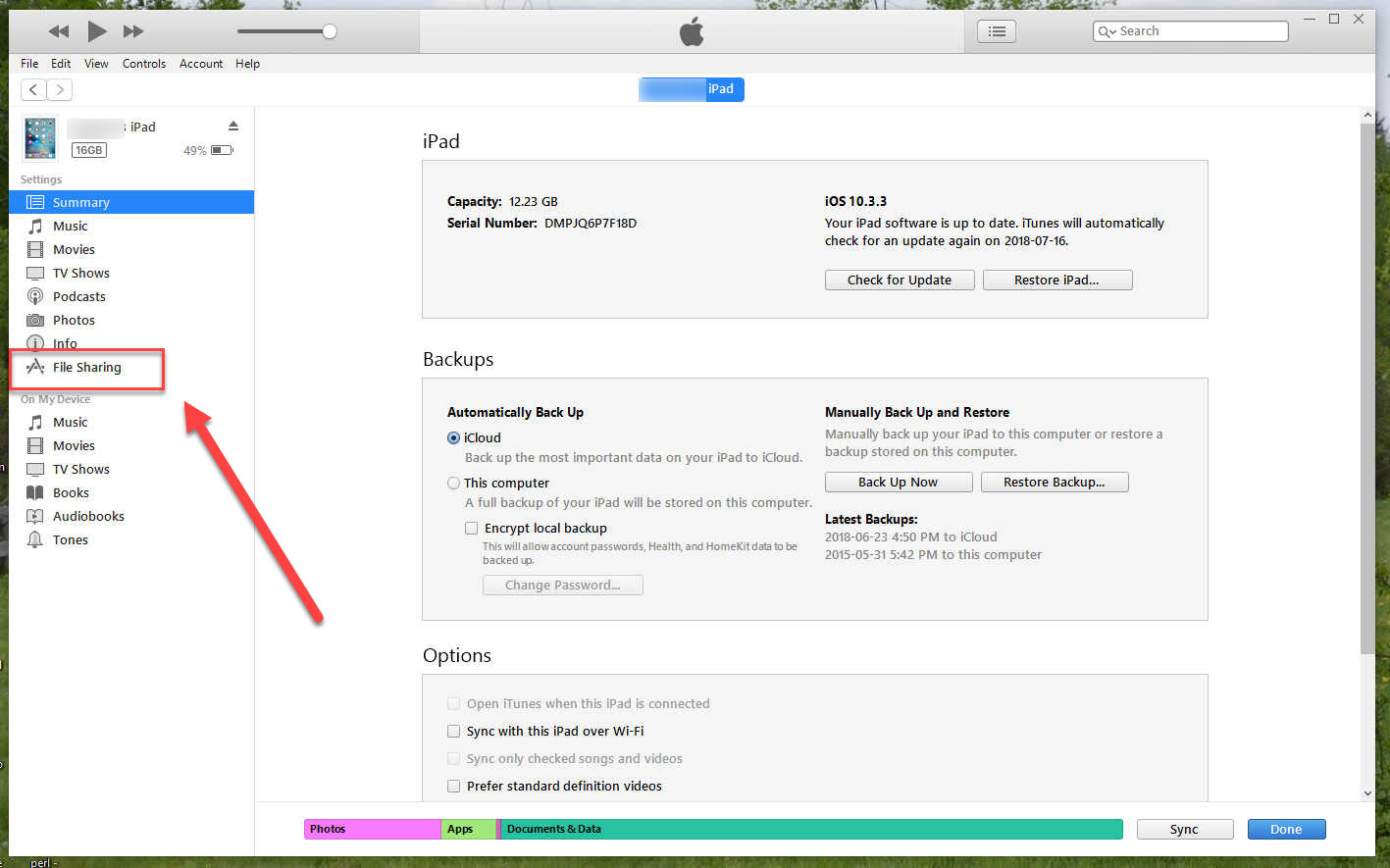
Once you have this screen open, select "File Sharing," like you see on the left (red arrow and box).
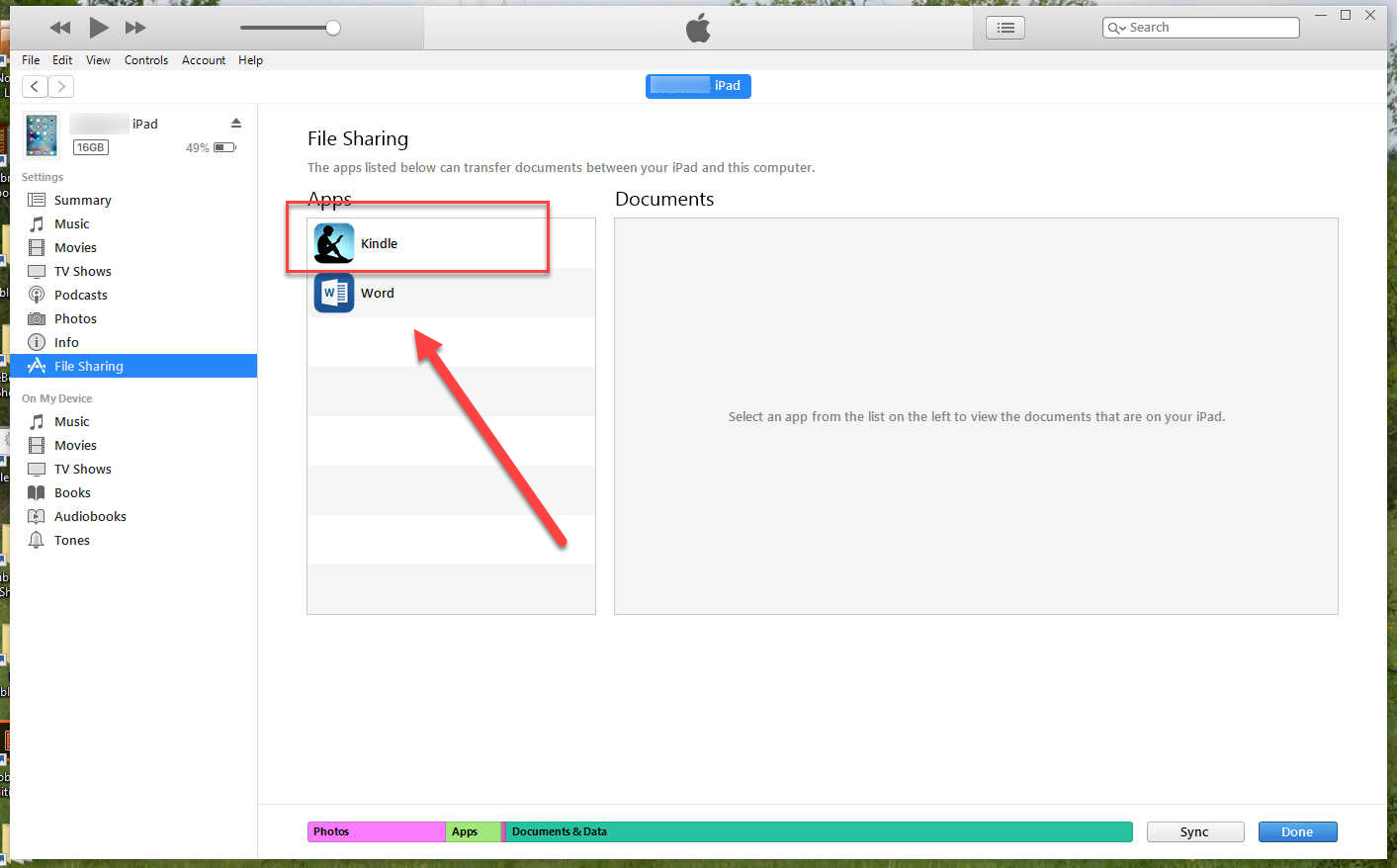
After selecting File Sharing, you'll select the "Kindle" as you see here.
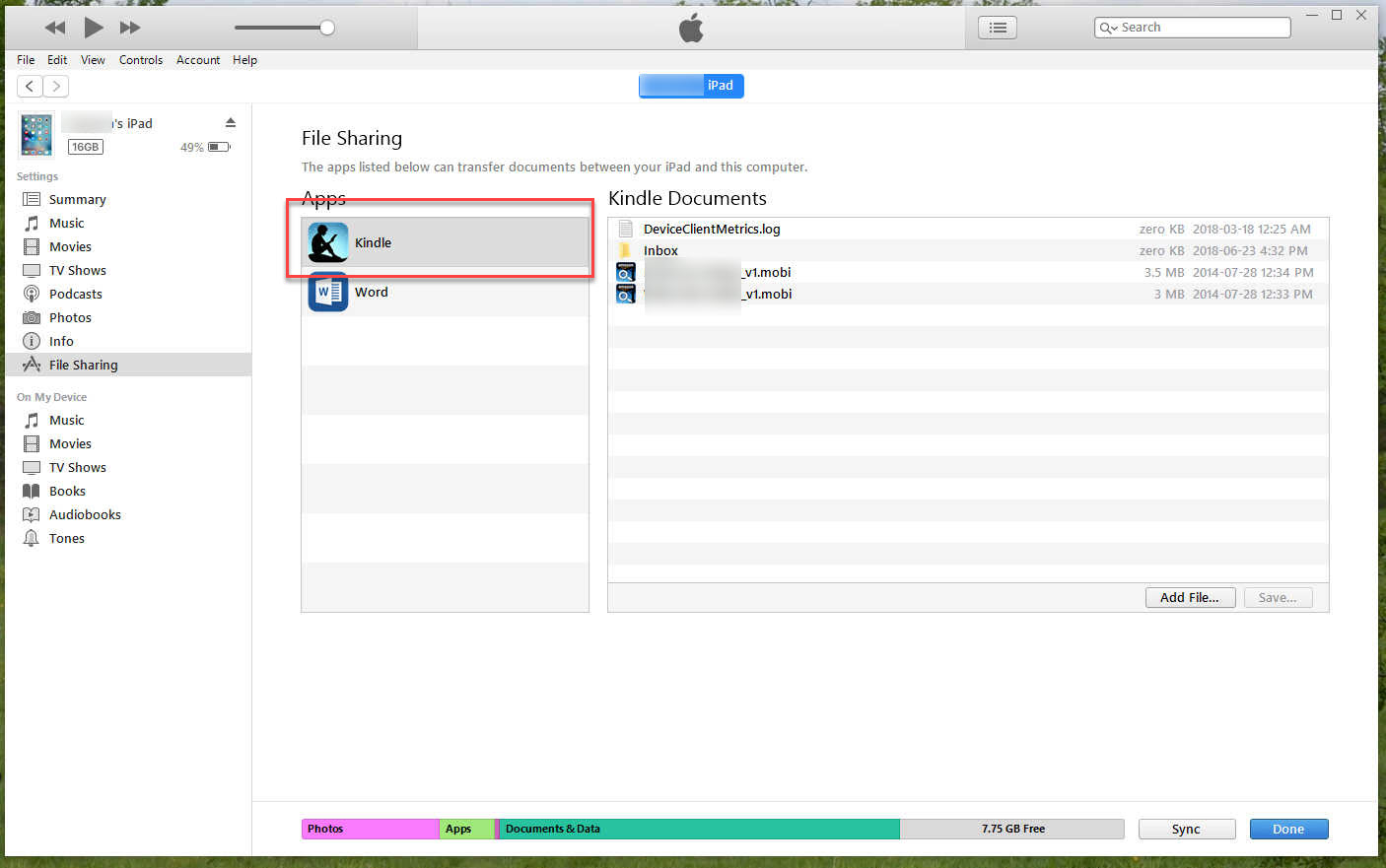
Lastly, you'll drag-drop the AZK file to the files sharing box, and you'll see the names, like you see here. Once that's done, you can open your Kindle for iPad/iPhone app, and review the file.
Once you've done all that, you can open your iPad or iPhone, and voilà!, you will see the Kindle book in your Kindle for iPad or iPhone app. This is the only way to accurately see what your eBook will look like, on any iOS device. If you load your MOBI file to your iOS, yes, it's far, far easier—but what you see shan't be remotely representative, at all.