Opening Your EBook Files For Review

Contents
First, the Instruction Files Download:
When we send you your eBook files, we also send you rather lengthy instruction documents. We don't do that to torture you—but most of our clients come to us having never even seen an eBook before. Those clients don't know how to:
1.Download files of any kind from a browser;
2.Find the (right) program that runs or opens those files;
3.Put the eBooks into the eReading program, to view the eBooks, or
4.What to look for once they have them open in an eReader.
That means that we have to explain a lot of information, in order to help you get through all the steps of this process. Believe us, we'd much, much prefer that you come to us already knowing how to do all this, as you're paying us to make the files, not train you in how to view them!
Now, in the instructions that we send you, we're going to:
1.First, we tell you upfront exactly what we're going to tell you to do, what to download, etc.
2.Then we give you links to the various free eReader programs, that you're going to download, install and use, to review your eBook files.
3.We provide Guides, in PDF format, that explain, in detail, how eBooks work, what features they don't have that print books do have (like page numbers or running headers), and we expect you to download those and read them, and,
4.We give you encrypted, secured download links from which you'll download your eBook files.
And yes, as I said, this means that the email we send you is rather lengthy. We tell you to read the entire email, and to download all the files—but most people don't. This unfortunately means that invariably, they waste their own time and ours, asking questions that are answered in the Guides and our FAQs. For example, we'll get proof forms full of "errors," because someone thinks that eBooks have pages, or that the running headers should show chapter heads (which can't be done in eBooks). That wastes the author's time, creating proof forms that are full of items that can't be fixed, and aren't "wrong." Obviously, nobody wants that to happen. Not you, not us. We don't want you to waste your time—or ours. And you certainly don't want to waste your time, right?
###
Firstly, when you click the link that we provide you, to download the Instruction files, you're going to see a screen that looks much like this:
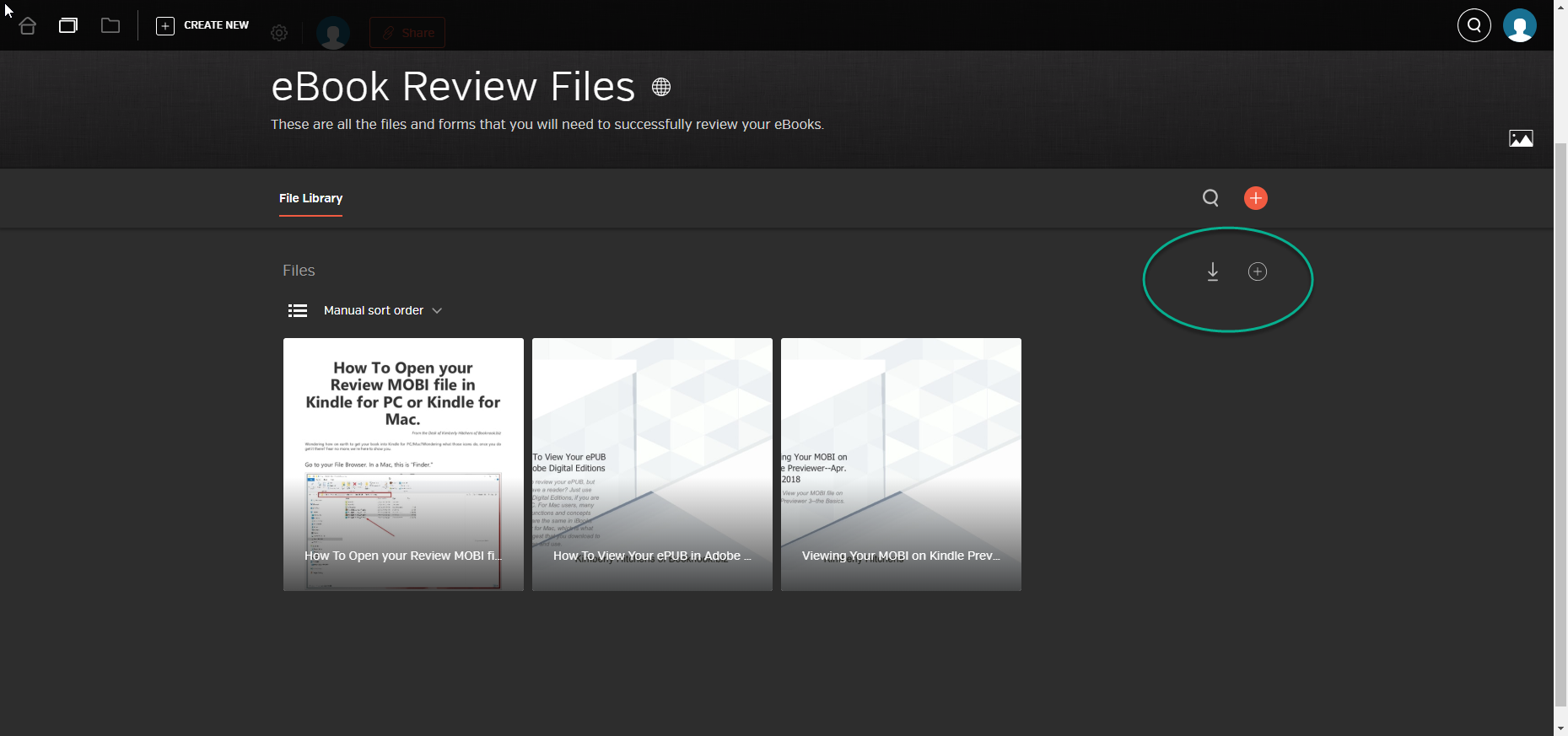
This is what a Hightail "Space" (like a Dropbox) looks like. See the Down Arrow, circled by the green circle? You'll click that, to download all the instruction files.
You'll click that, and then you'll need to a) find the download, and b) unzip or de-compress the files, on your computer. If you're on a Windows computer, typically, you can RIGHT-click on the .zip folder, and choose "Open with Winzip," or something similar.
If you are not comfortable with the idea of dealing with zip folders, unzipping them, etc., then in the main page, hover-over each individual file. You will see a down-arrow pop-up (see picture immediately below). Just click that, and the PDFs will download, one at a time, to your computer.
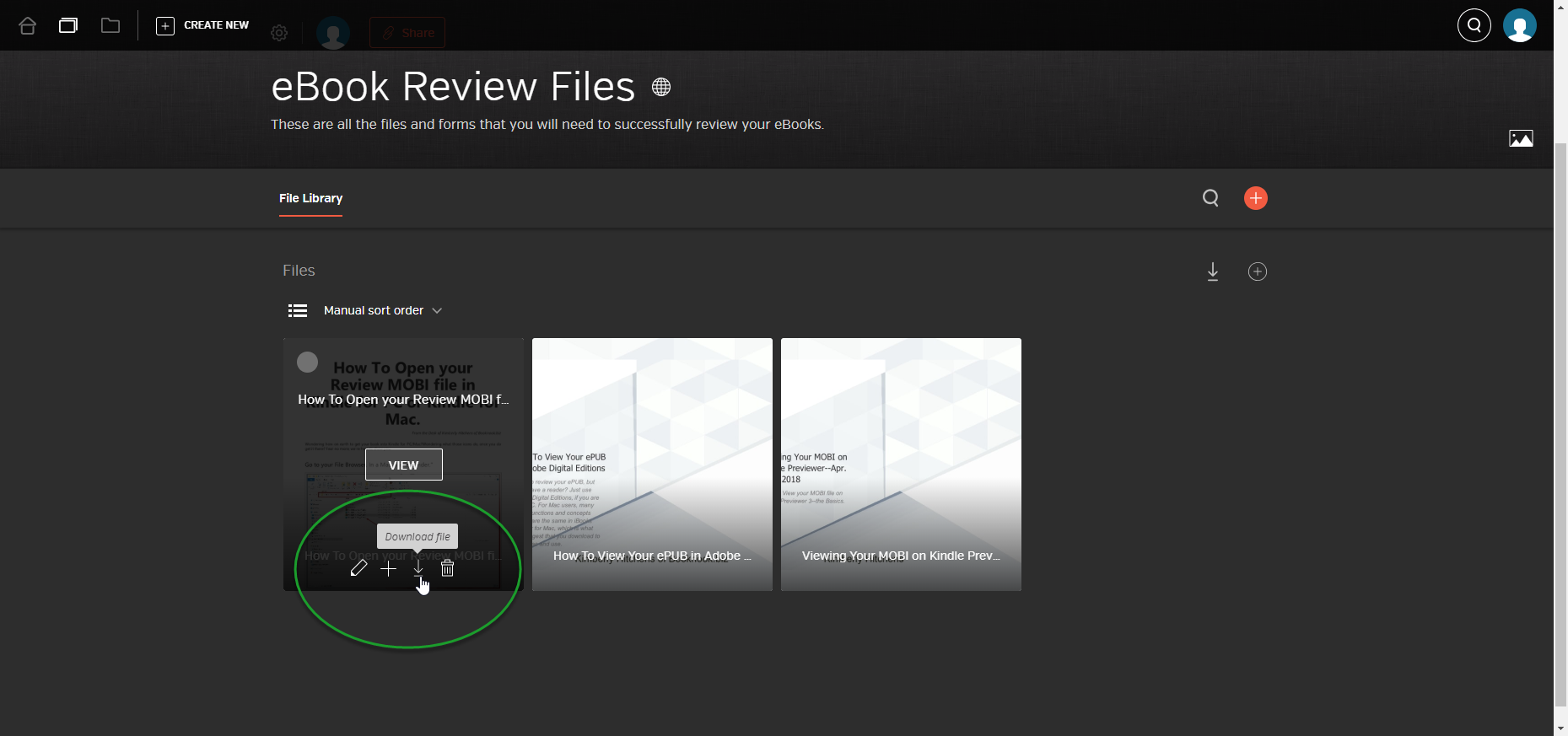
To Download the files, one at a time, just hover-over the image, and that down-arrow you see in the GREEN circle will pop-up. Just click it, and the individual file will download to your computer.
Typically, unless you direct the download—tell it where to go, or how to "save as...", your download will show up in your Download Folder. On a PC, (Windows 2007-2010-2013-2016), you can find that inside of your "My Documents" folder, or, in your "Quick Access" or "Favorites" panel. See below or following page.
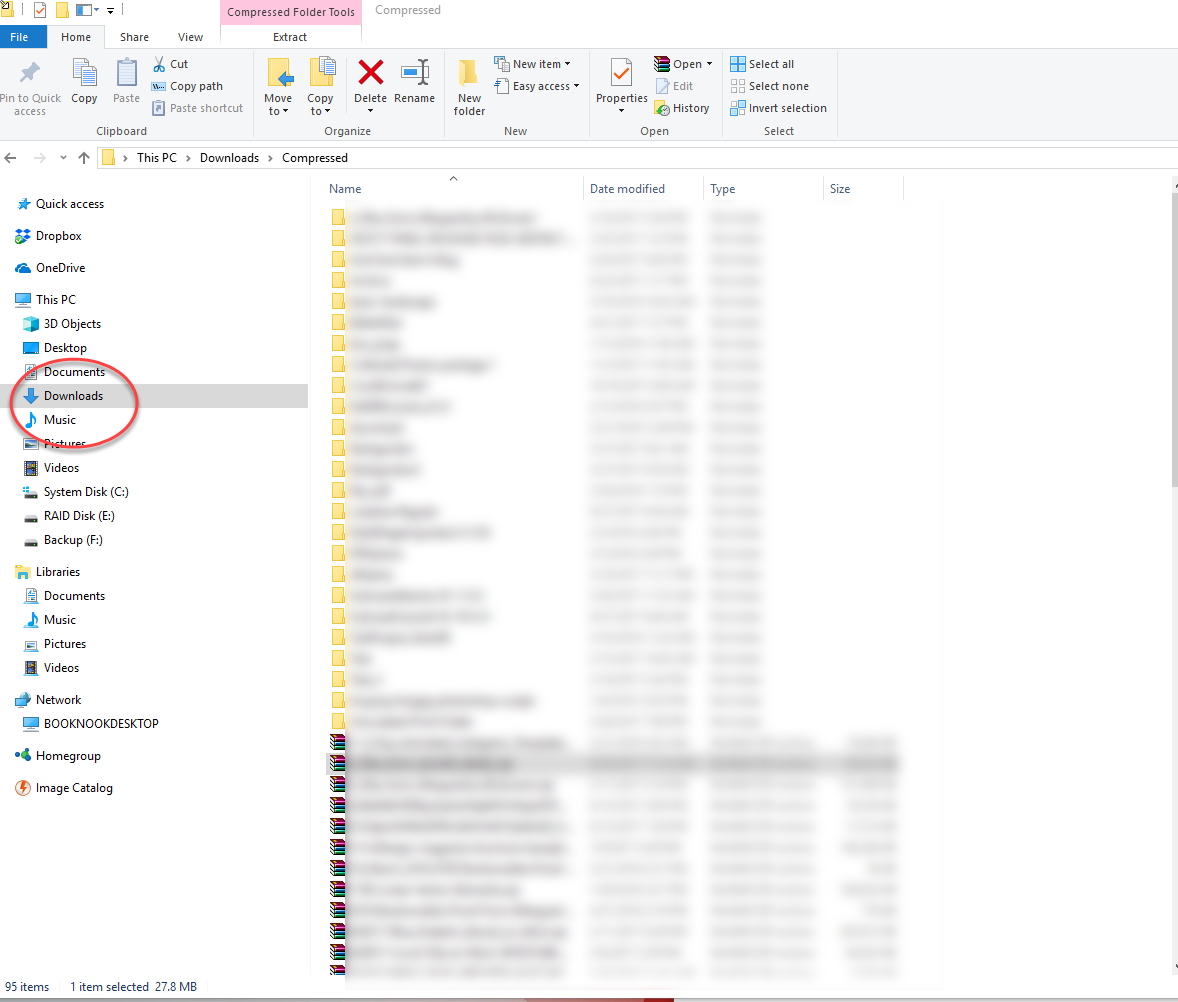
On a Windows PC, you can find the Downloads folder either in the Favorites panel, like this, or, just open your Documents folder and scroll down to "D" to find the Downloads folder. Open the Downloads folder, and voilà!, there will be your downloaded files.
This is the same place that you will find your eBook downloads, when you download those. See below.
eBooks File Download:
Basically, you'll do almost the same thing when you download your eBook files. Now, every single email system is different. But, let's say you have a Gmail account. We always put the links to the eBooks below the signature line of the person sending them. So, for example, here are two eBooks that were sent, from me, to a certain client's gmail account:
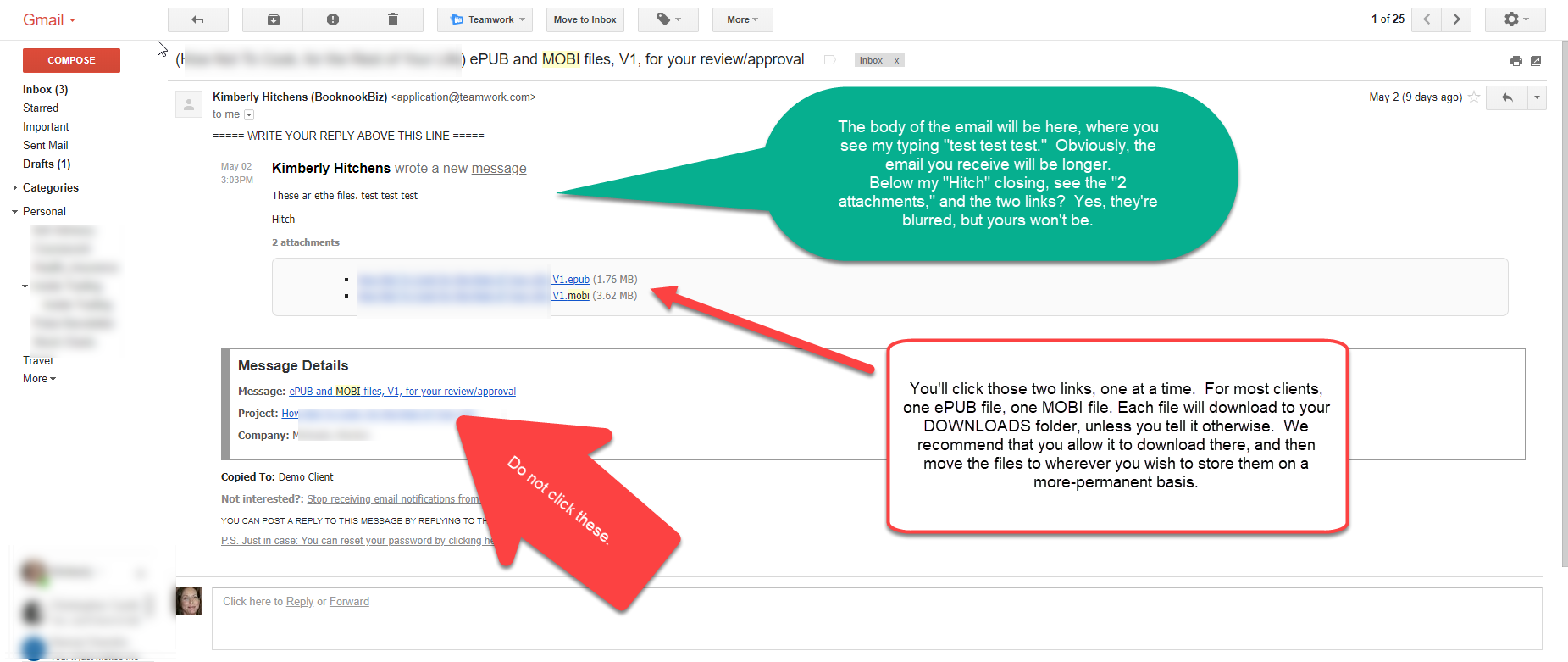
This is how your eBook files are transmitted, via secure links. You'll click the links, one at a time, and they'll download to your computer.
That's really all there is to it. Once you have the eBook files downloaded, please read the main article above, "Opening Your eBook Files for Review."
Once you have your files downloaded, make sure that you use the PDFs provided in the Hightail Dropbox, about "How to Open and Review your MOBI file in Kindle Previewer," or "How to open and review your MOBI file in Kindle for PC/Mac," or "How to view your ePUB in Adobe Digital Editions" (iBooks is very similar!), while reviewing your eBook, to save yourself a lot of time, effort and aggravation. And, use this Guide, as well, to see the answers to very frequently-asked questions that author-publishers ask, when seeing their eBooks for the first time.