Why Your eBooks Email is Lengthy, and Important!

Contents
When we send out your eBooks for review, we also send along a very long email, with a lot of instructions, and links to download a number of files and programs. We tell you to a) download programs that will allow you to read and view the eBooks we've made for you; b) download the eBook files that we've made for you, and c) download PDF Guides, that we've made for you to read and review, so that you gain an understanding of how eBooks look, work, function, and their features (or lack thereof).
We hear a lot of complaints when people receive this email, as if the instructions, etc., are either unnecessary, or some form of torture. Let me speak to that now.
We don't do that to torture you—but most of our clients come to us having never even seen an eBook before. Those clients don't know how to:
1.Download files of any kind from a browser;
2.Find the (right) program that runs or opens those files;
3.Put the eBooks into the eReading program, to view the eBooks, or
4.What to look for once they have them open in an eReader.
That means that we have to explain a lot of information, in order to help you get through all the steps of this process. Believe us, we'd much, much prefer that you come to us already knowing how to do all this, as you're paying us to make the files, not train you in how to view them!
Now, in the instructions that we send you, we're going to tell you the following--the bold text tells you which section of the email this information is in::
1.First Unnumbered Section:we tell you upfront exactly what we're going to tell you to do, what to download, etc. (the first unnumbered section); in that, we give you links to the various free eReader programs, that you're going to download, install and use, to review your eBook files. Without those, you cannot view or review your ebook files--period.
2.Sections 1 and 2: Then we ask you to watch a video, and we tell you where to find the eBook links in the email;
3.Section 3: We provide Guides, in PDF format, that explain, in detail, how eBooks work, what features they don't have that print books do have (like page numbers or running headers), and we expect you to download those and read them, and,
4.Section 4: We explain about revisions;
5.Section 5: We tell you how to get started downloading and reviewing your ePUB file;
6.Section 6: We tell you how to get started downloading and reviewing your Kindle MOBI file;
7.Sections 7 and 8: We give you encrypted, secured download links from which you'll download your eBook files, and tell you what to do if you have no revisions (hooray!), and lastly,.
8.Section 9: for most files, we tell you how to see your Delivery Fee Size. (Not applicable to all files)
Important Parts of the eMail, and WHY You should read them:
The images below show you the email that you receive from us, in its entirety, for ePUB and MOBI file review. Let's discuss it in detail. In each section below, the text that applies to something will use colored outlines or highlighting to make sure it's clear.
Each and every section matters. Yeah, we know it's long, but why would we send you such a long email? Maybe because we have to? So, please--take your time and review what's below, so that you understand what each section is, why it matters and why it pays to read the entire email.
The Free eReader Links and Downloads section: (Red)
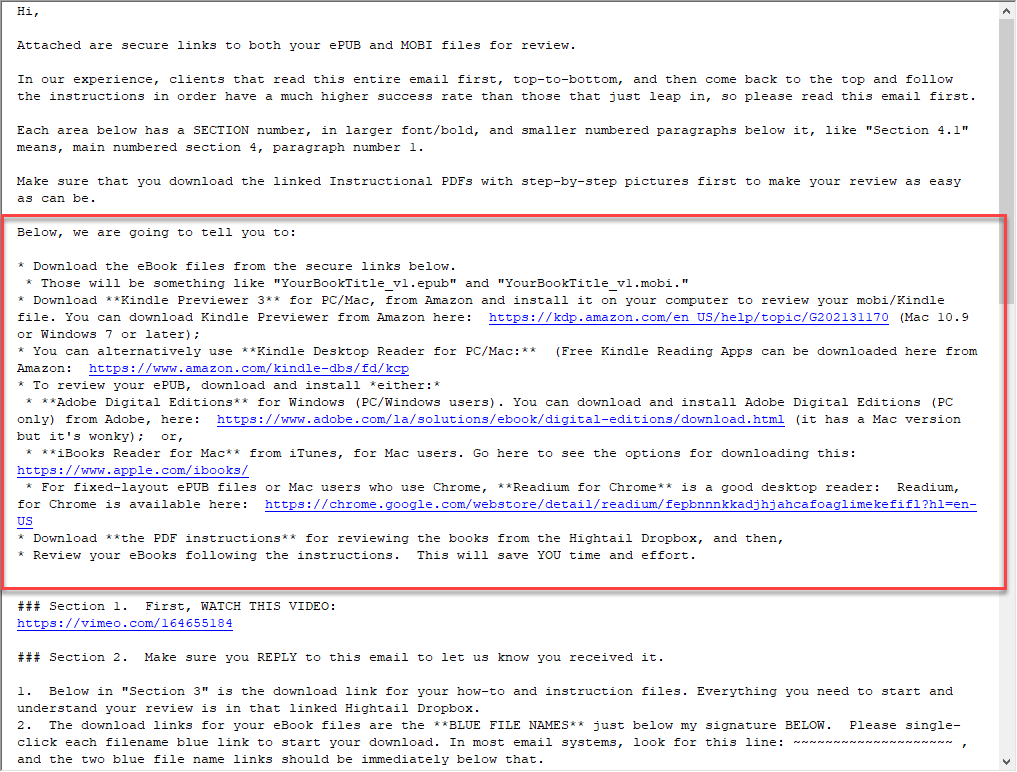
This is the top portion of the email. The red-boxed content contains the links to download and install various free eReaders, to review your Amazon MOBI (Kindle) ebook file and your ePUB file.
The First (unnumbered) Section: (outlined in RED, on the opposite page)
The section outlined in RED, in the image on the opposite page, is the section that contains all the links to the various free eReaders that we're telling you to choose from and download. If you don't already have an eReader installed, you must download these, or you won't be able to see your eBooks--period.
The first thing you do is, click the appropriate links, (depending on whether you have a PC or Mac), download the eReaders (Kindle Previewer 3 and Adobe Digital Editions for PC computers, and Kindle Previewer 3 and iBook Reader for Mac, for Mac users). Once you have those installed and working, on your computer, you're halfway done!
Section 1 and "Confirm You've Received This": (outlined in PURPLE)
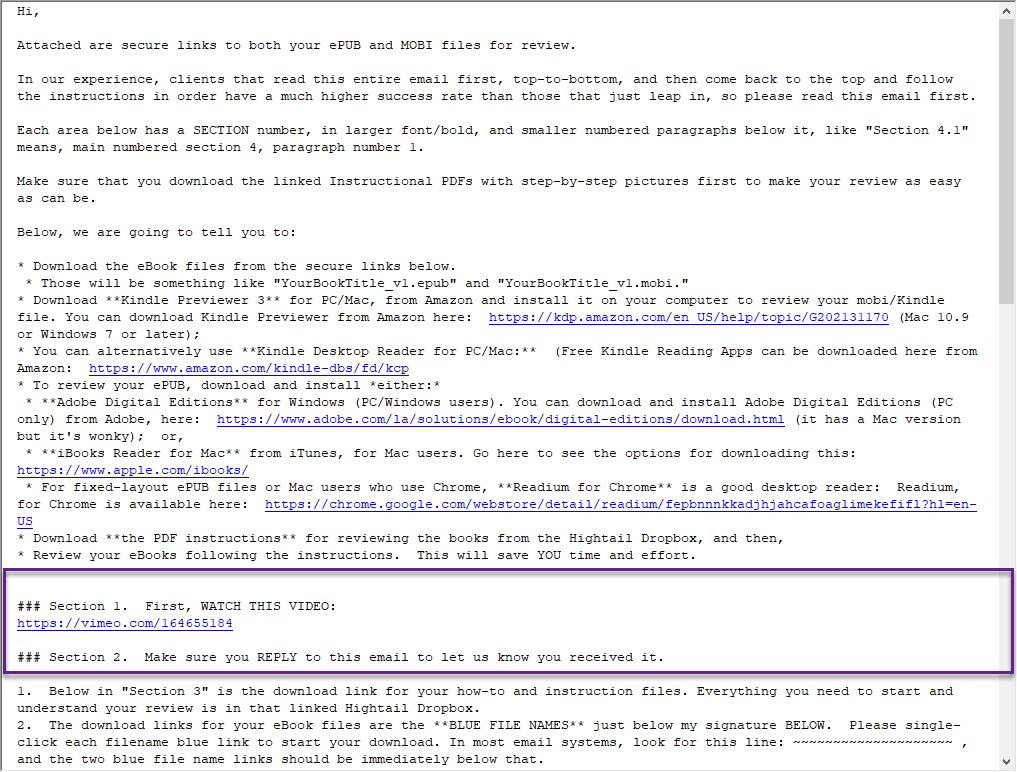
In the purple boxed content, we ask you to hit REPLY, so that we know you've received the email, and we provide you with the link to a video, that reinforces our instructions.
The purple-outlined box has the link to our "Mission Impossible" Video. In the next section (items 1-2 below "Section 2," in the purple-outlined box above) we tell you that we're going to be giving you links, in Section 3, that are important, and where to find the DOWNLOAD links for the actual eBook files (below the signature of the person who sent it—you'll see that below). So, Section 1's video, and Section 2's text, are informational. Right?
Section 2—View our Video, and Where To Find Your eBook Links for Download: (in GREEN):
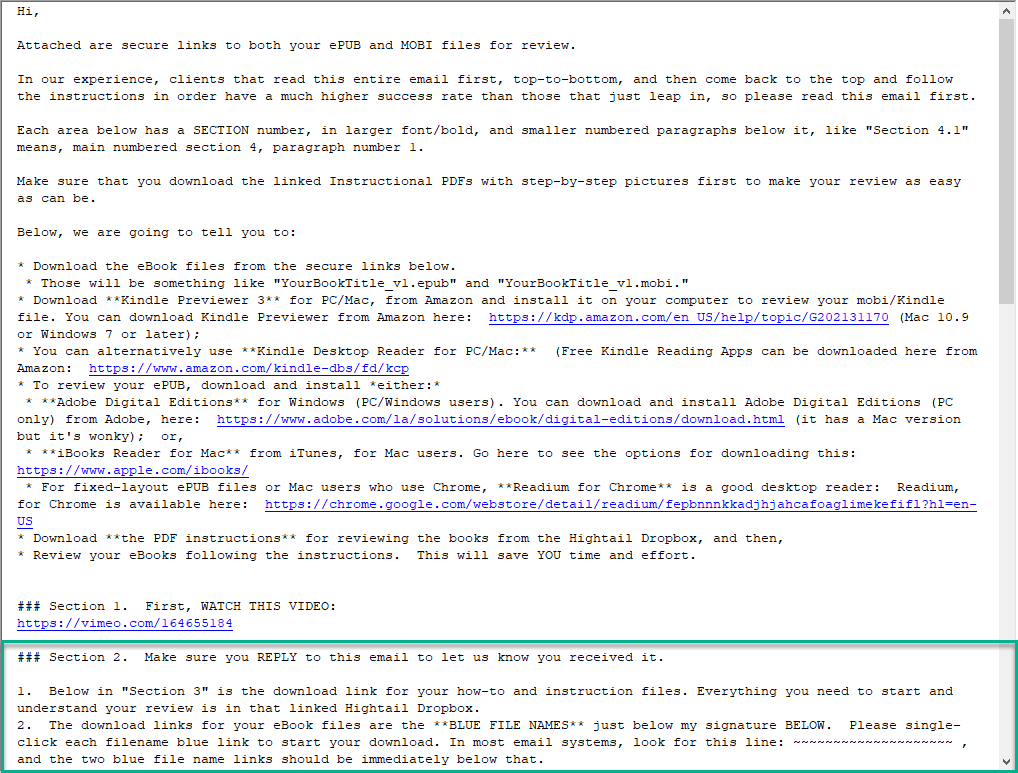
In this section, we tell you that we have Guides for download, in section 3, and that the download links for the eBooks, themselves, are below the signature block of the person sending the email.
Section 3—the MOST IMPORTANT Downloads: (outlined in black)
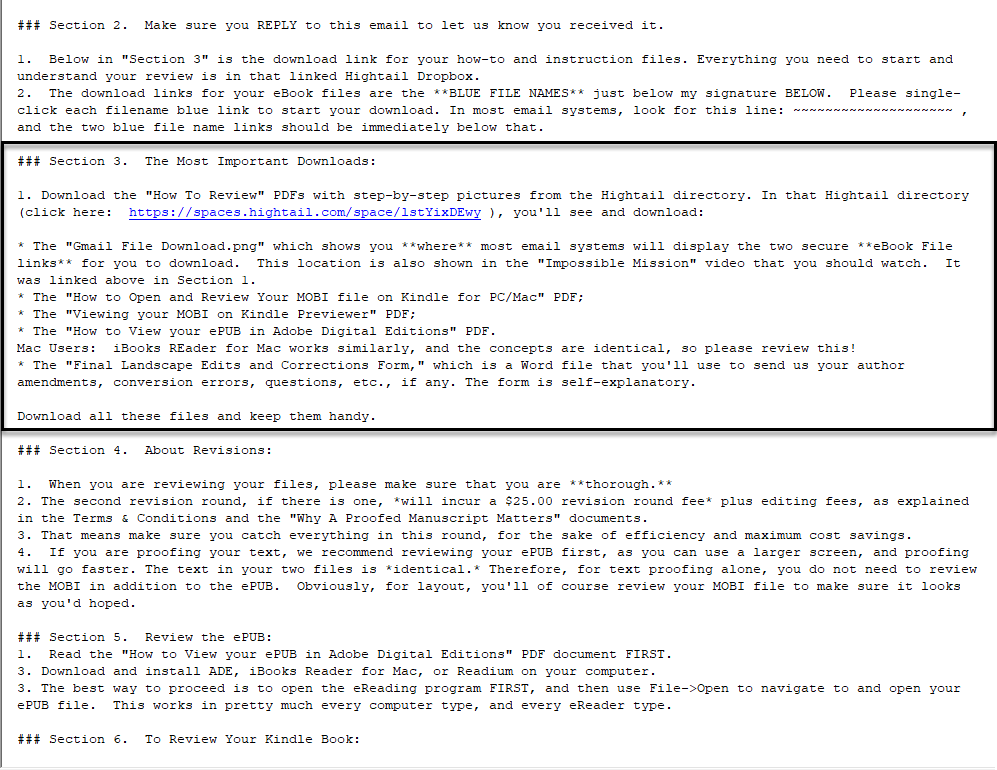
This section, Section 3, contains links to the PDF Guides, that tell you all about eBooks--how they work, how to review them using the programs we've had you download, and all that good stuff! Most people ignore this section--which is a dreadful mistake. These Guides can save you much time and wasted effort.
Included in these downloads are Guides that show you:
•Where the links are, in most email providers/companies, to download your eBooks;
•How to open and view your ePUB in Adobe Digital Editions (which is similar to iBooks, so use it for Mac users, too);
•How to Open and view your MOBI file in Kindle Previewer;
•How to open and review your MOBI file in Kindle for PC/Mac;
•And the Proof form, which you'll use to give us the edits.
Section 4—About Revisions, Generally: (Gold, of course!)
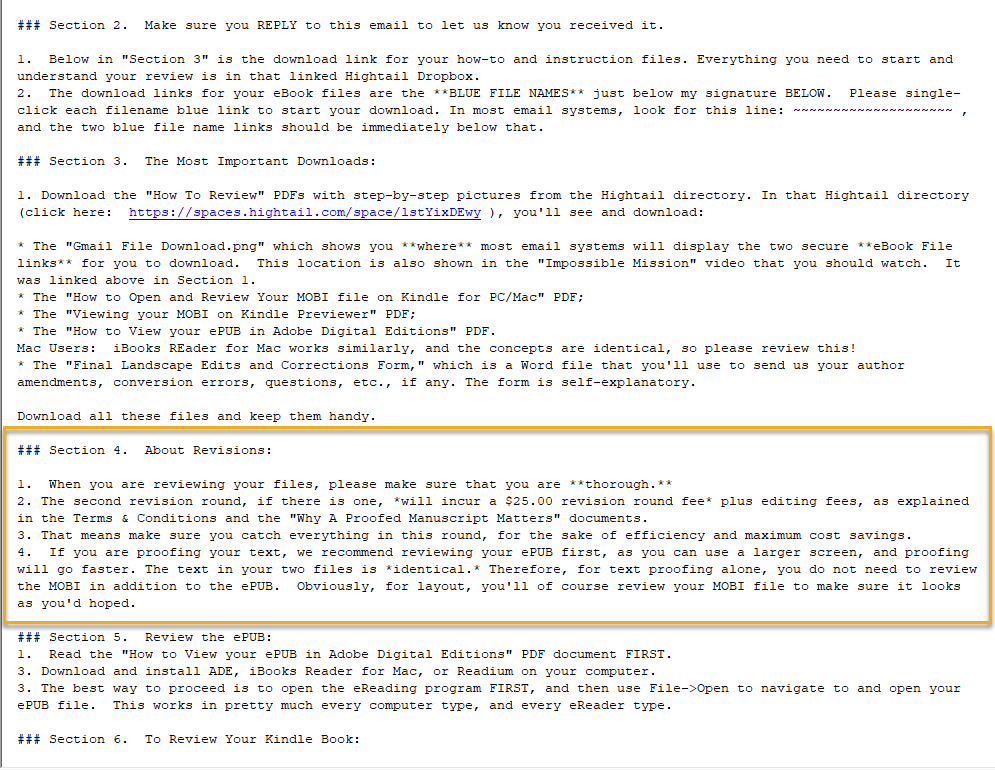
Section 4 reminds you that revisions cost money, and why it's important to find all your edits in this first review cycle--to save money!
Section 5—Review Your ePUB: (Blue!)
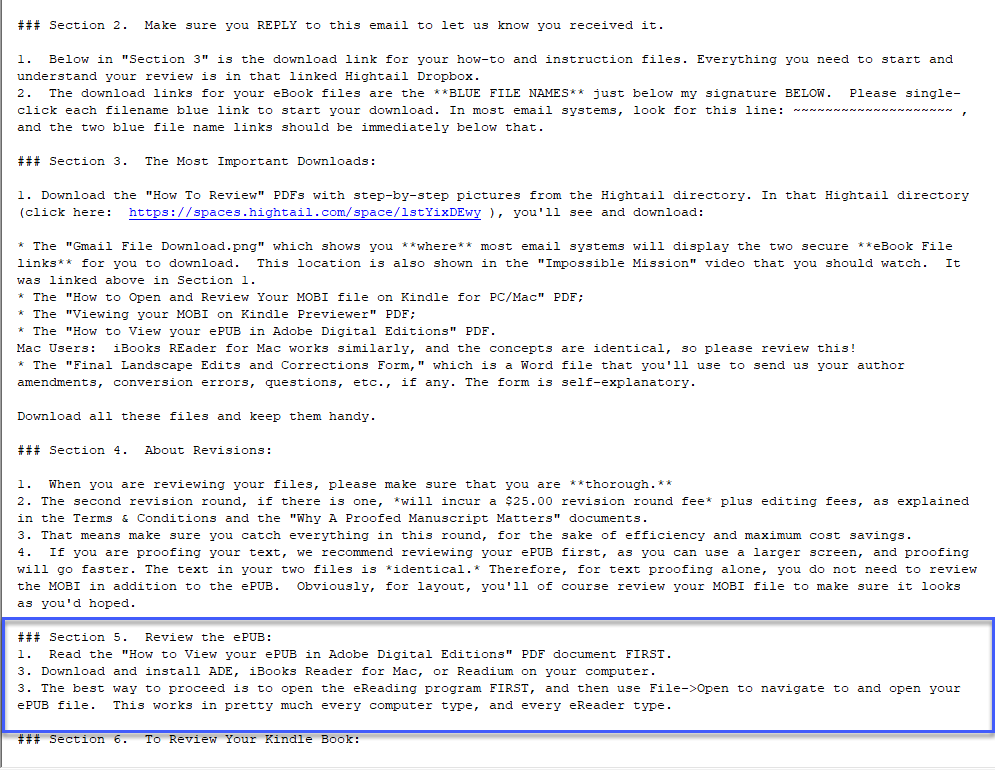
Section 5 tells you how to get started reviewing your ePUB.
Don't forget—at this point, you should be reviewing some of the PDF Guides that you downloaded from the Hightail Cloud Storage. The ones you downloaded from Section 3.
Section 6—How to Start Reviewing Your MOBI: (Creamy orange!)
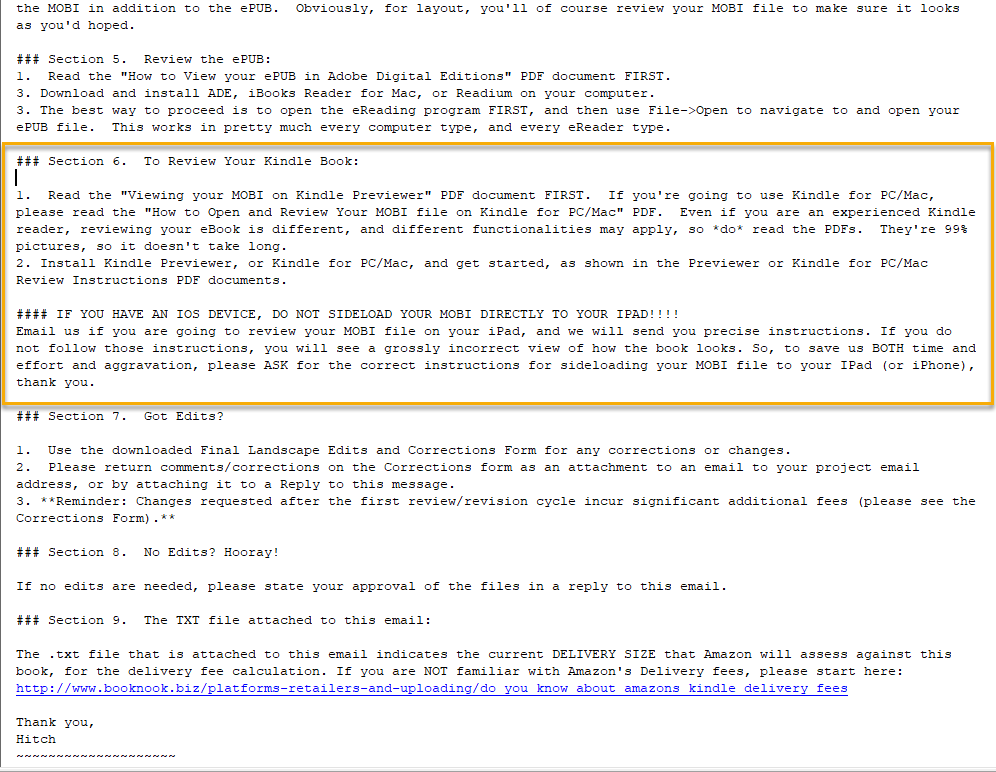
Section 6 gets you started on reviewing your MOBI (Kindle) file! You don't want to miss this one!
Also included in that section is an important warning about not putting your MOBI file on an iPad or iPhone! Don't miss it.
Sections 7 and 8—Edits and No Revisions: (Poor plain old gray...)
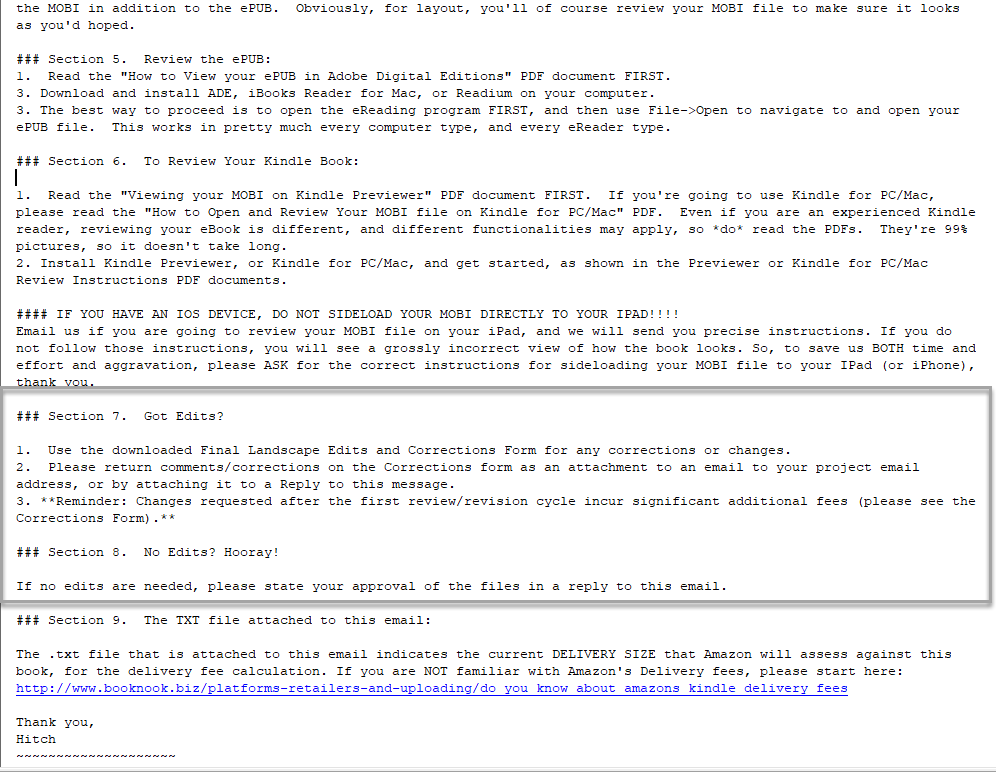
Sections 7 and 8 tell you what to do if you have edits--how to complete the form, etc, or, in 8, what to do if you have NO revisions (hooray!).
Almost Done—Section 9: (Teal!)
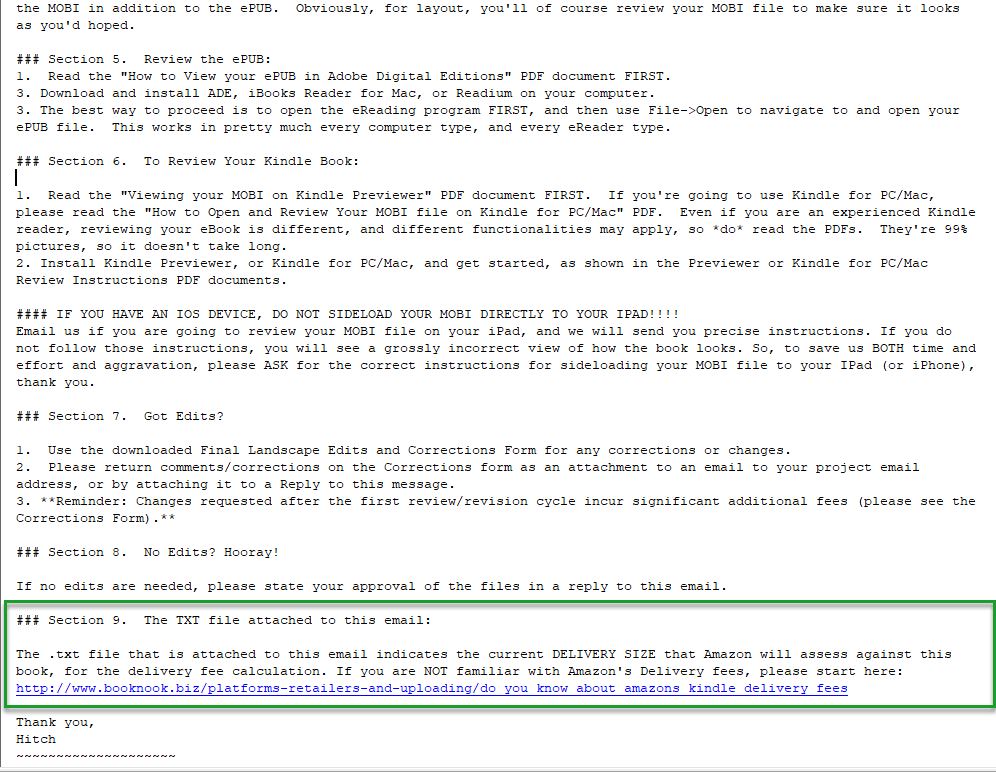
Section 9--this tells you where to find the Delivery Fee Size of your MOBI file, in the .txt file that we also send you with this pair of files.
Section 9 tells you to look for the "FileSize.txt" file that we also send you, which fills you in on just how large your MOBI file really is, in terms of the Delivery Fee that Amazon charges you for, with each sale. If you don't know what we're talking about, make sure you review What Are Amazon Delivery Fees? here in the Uber-FAQ.
Lastly, the file download links.
We put the file download links BELOW the signature block, that you see at the bottom of the email. Below the "squiggly line," which looks like this: ~~~~~. See where the yellow highlight is, below?
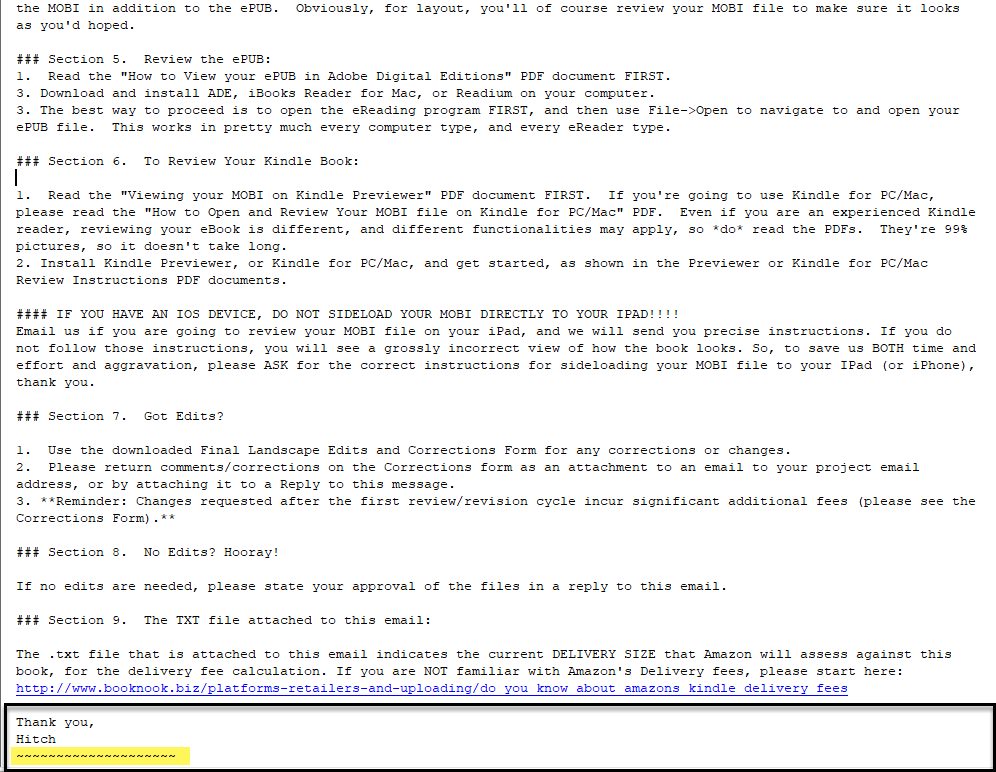
This last image shows you where the signature block is, and the "squiggly line." Your file download links should be immediately below that squiggly line.
See the following page for an example of what this looks like in Gmail.
In Gmail, for example, if you look at this next image, it appears like this:
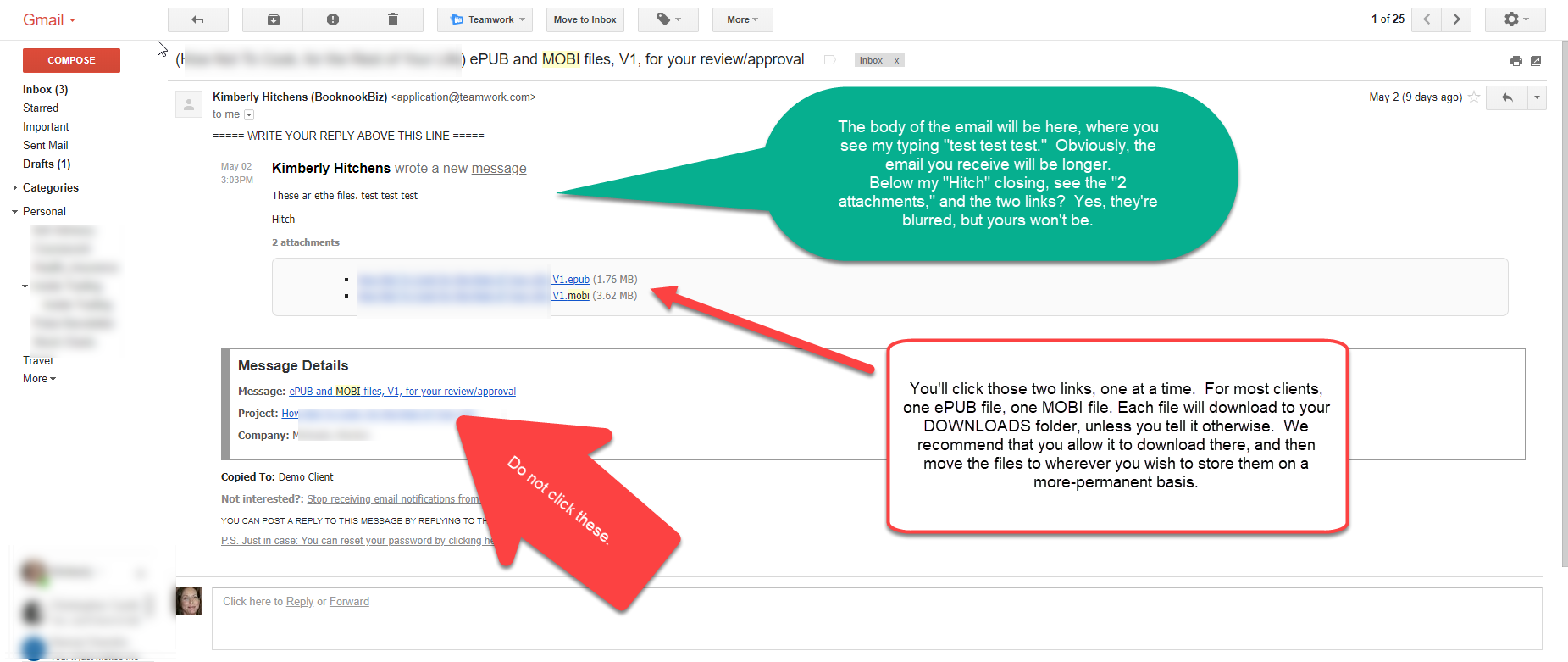
This image shows you an email sent to Gmail, and where the links are in the email.
See the long skinny red arrow, that's pointing to the two blue links? They are right there—those links are the filenames, and you download the files by clicking them.
That's it. That's all there is.